Sources & loads
Manage event data in Cohortum — check source status, rename sources, control who sees them, review load history, and finish an empty source with New upload.
A source is one event log you've brought into Cohortum — a CSV or Parquet file of clickstream events like "Video clicked" or "Page pagination clicked". You rename and organize those events in the Event catalog. Once a file finishes loading, that source feeds every analysis, cohort, and chart in the project. This page is where you keep your sources in good shape: see what's loaded, rename things, check load history, and add more data.
New here? Start with Upload your first source and bring in a file. This page picks up after that — it's about managing the sources you already have.
The Sources list
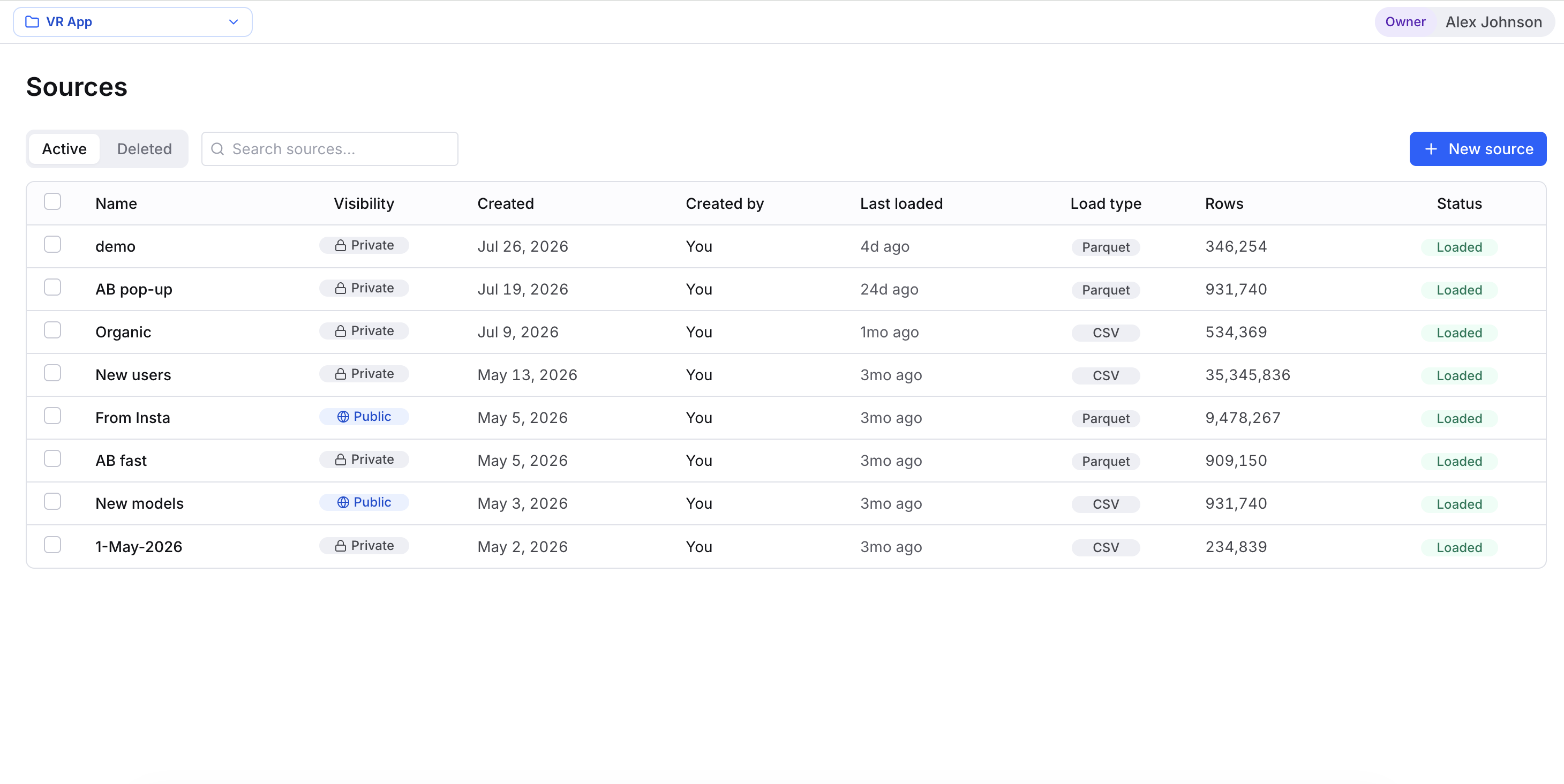
Open Sources from the left sidebar. The list has two tabs:
- Active — every source that isn't deleted: loaded, loading, or still empty.
- Deleted — sources you've removed, kept around for reference. Deleting is permanent — see Delete a source.
Each row is one source. Click any column header to sort. Here's what the columns mean:
| Column | What it shows |
|---|---|
| Name | The source's display name. Click it to rename inline. |
| Visibility | Private or Public — see visibility. |
| Created | The date the source was added. |
| Created by | The member who added it (shows "You" for your own). |
| Last loaded | When data last landed, as a relative time. |
| Load type | CSV or Parquet — fixed when the source is created. |
| Rows | Total events currently loaded. |
| Status | The source's state — see below. |
What each status means
The Status column tells you at a glance whether a source is ready to analyze:
| Status | Meaning |
|---|---|
| Loaded | A file finished importing. The source is ready to use. |
| Loading | A file is importing right now. |
| Empty | The source exists but has no data yet — nothing has loaded successfully. |
| Deleted | You've removed the source (it's on the Deleted tab). |
When an import fails or gets cancelled, that outcome shows up on the load's row in the load history. The source stays empty until a file lands successfully.
Rename a source
Click a source's name in the list (or its title in the detail view) to edit it in place. Press Enter to save, Escape to cancel. Renaming is just cosmetic — it doesn't touch the underlying data or anything you've built on the source.
Delete a source
Check one or more rows, then click Delete (N) above the list. A confirmation asks — "Delete N source? The selected source and all associated load history will be deleted. This can't be undone." — with Cancel to back out or Delete to go ahead.
Sources have no Restore action — unlike projects. A deleted source moves to the Deleted tab so its name and history stay visible, but you can't bring it back: the events are gone. Want it again? Create a new source with the wizard and re-upload the file. Deleting also wipes every load in that source's history at once.
Deleting a source (or a load) won't delete the analyses, cohorts, and saved analyses built on it — but they lose their data. Anything that leaned on the removed events shows a degraded "no access" state instead of results, just like when a source goes private or moves out of scope. See Cohorts and Saved analyses for how those views behave once their source is gone.
The load history
Click a row to open the source detail. It has two tabs: Loads and Column mapping, where you confirm how columns map to events, users, and timestamps. The Loads tab is a running history of every file imported into that source:
| Column | What it shows |
|---|---|
| Load date | When the import finished. |
| File | The uploaded file's name. |
| File size | Size of the uploaded file. |
| Rows loaded | Events that imported successfully. |
| Rows rejected | Rows dropped during import (malformed, unmappable). |
| Status | The load's state (e.g. done, failed, cancelled). |
A load runs through pending → uploading → parsing → transforming → done. If it stops short, you'll see failed or cancelled instead.
Cancel or delete a load
Each load row ends with an action:
- In-flight loads (still importing) show a cancel button. Click it and you're asked "Cancel load?" — confirm with Cancel load, or back out with Keep loading. Cancelling stops the import and clears anything already written to storage.
- Finished loads show a delete button. Confirm it to remove that file's events. You can't undo it.
A high Rows rejected count usually points to a column-mapping mismatch — say, timestamps in a format Cohortum couldn't read. Open the Column mapping tab to check which columns map to Event Name, User ID, and Timestamp, and see Supported formats & limits for the shapes we accept. Column mapping locks once a source is created (like Load type), so you can't edit it in place. To fix a bad mapping, create a new source with the wizard, set the mapping right there, and re-upload the file.
Finishing a source with New upload
Got a source that doesn't hold data yet? Attach a file with New upload — the Upload button inside a source's detail view, or the dialog you reach from the source list.
Pick the source, choose your file, and click Upload. Cohortum reuses the source's existing column mapping, so there's nothing to re-map — it just checks that your file has the columns that mapping expects. If it does, the import kicks off and you'll see a toast: "Importing your file…".
.csv, a Parquet source wants a .parquet.Once a source is loaded, its Upload button goes disabled — a source holds one dataset. New upload is for finishing a source that's still empty: one that hasn't had a file yet, or whose load failed, was cancelled, or was deleted. To bring in a different file, create a new source with the wizard.
Private vs Public sources
The Visibility column flips between Private and Public — that's how you share a source with teammates who otherwise couldn't see it. Visibility controls access inside the source's project; it doesn't reach across projects:
- Private (the default) — visible only to Owners, Admins, and whoever created it.
- Public — visible to every member with access to the project, including Creators and Viewers.
Click the badge to flip one source, or select several and use the bulk Make public / Make private action above the list.
Who can upload sources
The Sources nav item only shows up for members who can add data:
- Owners and Admins can always upload and manage every source.
- Creators can upload only when their Upload sources toggle is on (set per member on the Members screen in Settings).
- Viewers never upload.
There's no separate "Member" role — the roles are Owner, Admin, Creator, and Viewer. See Members & roles for the full breakdown.
Events don't live forever. Your workspace has a retention window (set under Settings → Workspace as "Keep events for", e.g. 180 days). Anything older than that window is permanently deleted, no matter which source it came from.
Related
Upload your first source
Walk through the new-source wizard end to end.
Event catalog
Rename, recolor, and exclude the events your sources bring in.
Supported formats & limits
CSV and Parquet requirements, column mapping, and size limits.
Members & roles
Who can upload and manage sources — Owner, Admin, Creator, Viewer.
Workspaces & projects
How projects scope your sources, plus delete and restore.