Sessions
How Cohortum groups events into sessions, how session boundaries form, and how the Session range control picks a user's Nth session.
A session is a single visit — everything one user does before they step away. Cohortum groups your events into sessions so you can look at behavior one visit at a time, instead of as one endless stream of clicks.
What a session is
Think of a session as a sitting. A user opens your app, watches a video, clicks through a few pages, then leaves. Those events form one session. When the same user comes back the next morning, that starts a new session.
Sessions give your data structure. Instead of asking "what does this user do across all of history," you can ask "what happens inside one visit" — where it starts, how far it gets, and where it ends.
They also keep comparisons honest. Because sessions are numbered per user, you can line up like with like — one user's first visit against another user's first visit — instead of comparing someone's 1st session with someone else's 10th. A newcomer's first visit and a regular's tenth behave nothing alike, so mixing them muddies every analysis.
How sessions are formed
You decide how sessions are drawn when you upload a source, on the final Sessions step of the new-source wizard (Source → Upload → Mapping → Sessions). There are two ways to draw them — and whenever you can supply your own session ids, we recommend it: your logs hold each user's full history, so the boundaries and their numbering match your own definition exactly.
Turn on Auto-generate sessions and set a Session timeout (minutes). Cohortum starts a new session whenever a user is inactive for longer than that timeout. Say your timeout is 30 minutes and a user goes 45 minutes without an event — their next event opens a fresh session. Most web and app products land between 15 and 30 minutes. Too short splits one visit into many; too long merges separate visits into one. See FAQ & troubleshooting to tune it.
If your event log already carries a session identifier, pick a Session column instead. Cohortum uses that column as the session boundary and skips the inactivity logic.
Pick a session column whenever something upstream — an analytics SDK, a data-warehouse export, or your own preprocessing — can stamp each event with a session id; that's the most accurate option. Reach for auto-generate only when your data has no session concept of its own, which is the case for most raw clickstream logs.
You set session formation once, when the source is created, and you can't change it on that source afterward. To use a different rule, create a new source through the upload wizard and re-upload your data there. The new source is reprocessed from scratch, so downstream analyses read from fresh sessions. See Sources and loads for the full upload flow.
The Session range control
Every analysis has a left panel with a Source block. Below the date range, you'll find a Session btwn N and M range control.
The Session range picks which of a user's sessions to include, counted in order — their 1st session, 2nd session, and so on. It is not a filter on how many sessions a user has.
Sessions are numbered from 1. Session btwn N and M includes every session whose number falls between N and M, both ends included — so setting N to 0 means "start from the very first session." For sessions 3 through 5, set the range to Session btwn 3 and 5.
Each user contributes only the sessions inside the range. A user with fewer sessions than N contributes nothing. A user with more than M keeps their in-range sessions and drops the later ones.
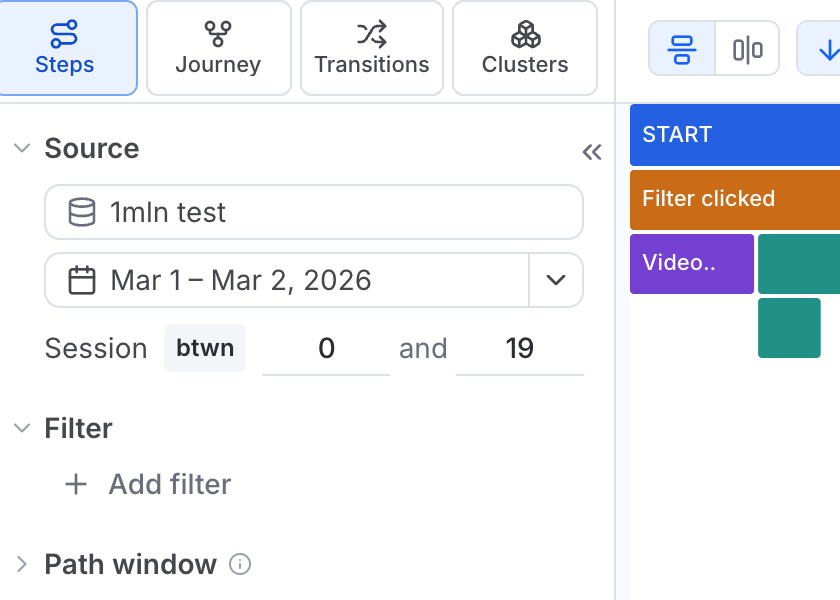
Example: a user's first session
Set the range to Session btwn 0 and 1.
- ✅ This includes each user's first session — the events from their earliest visit.
- ❌ It does not mean "users who have only 1 session."
A user with 20 lifetime sessions still contributes, but only their 1st session's events enter the analysis. Widen the range to Session btwn 0 and 5 to include each user's first five sessions.
This makes the control ideal for onboarding questions. Set it to the first session or two to see how brand-new visits behave — where users land, what they click, where they drop off — without later, more expert visits diluting the picture.
"Session btwn 0 and 1" is the 1st session of each user, not "users with exactly one session." To filter on the number of sessions a user has, or on other user and event attributes, use the Filters block instead.
Analysis levels and sessions
Cohortum runs an analysis at one of three levels (shown as the Mode on Home and the Level column in Saved). Sessions apply at two of them, and the Session range control and session formation work the same way at both:
- Events Analysis works on your raw events. When you build a Steps chart, a Journey, a Transitions graph, or Clusters here, each node is a single event like "Video clicked" or "Page pagination clicked". This is where you'll spend most of your time.
- Sessions Analysis uses the same four tabs — Steps, Journey, Transitions, and Clusters — but works on session types instead of individual events. A session type is a recognizable pattern of activity inside a session, so the visualizations show how kinds of visits unfold. Since session types are derived, this level adds a Mapping button in the Sessions panel that opens the Edit session types editor.
Session numbering means the same thing at both levels: "session 3" is a user's third session whether you're reasoning over raw events or over session types.
The third level, What-If, lets you test whether users reach a goal, built on the session transition graph. It shares the same Source, date range, Session range, and filter controls as the other levels — so sessions apply here too — and lets you simulate how improving a transition moves users toward a target event.
Session types and the mapping editor
At the Sessions level, the four tabs are built on session types rather than raw events. A session type is a recognizable kind of visit — a pattern of what a session was about, rolled up from its events rather than a single click. Cohortum assigns every session a type automatically by grouping similar sessions, and the left panel lists those types (with user counts) in place of the Events checklist.
To shape that mapping, click Mapping in the left panel's Sessions section. It opens the Edit session types editor, whose golden rule sits right at the top: order matters — when more than one type fits a session, the one higher in the list wins.
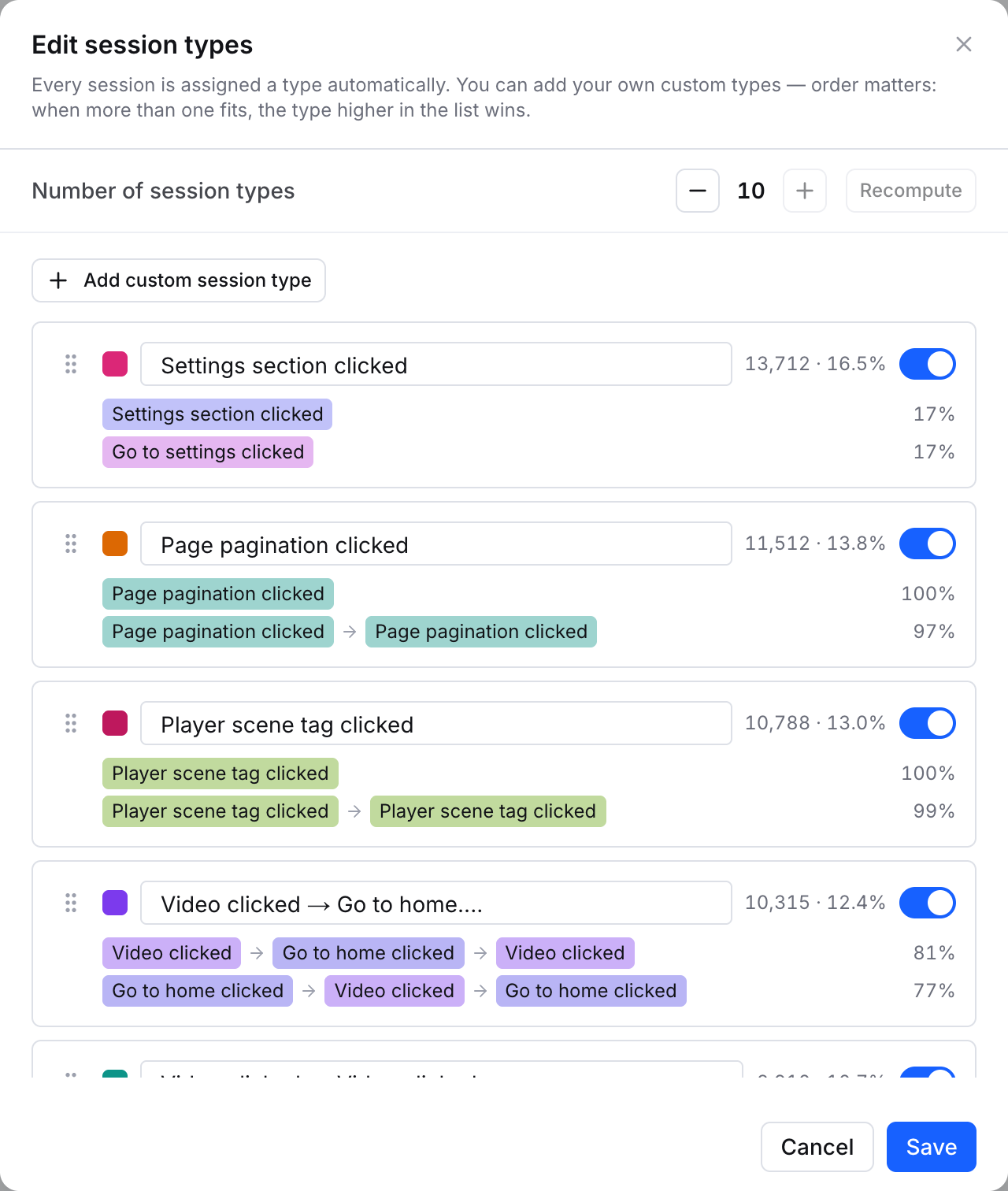
In the editor you can:
- Set how many types there are — the Number of session types stepper (− / +) controls how granular the automatic grouping is; click Recompute to regroup at the new count.
- Add custom types — + Add custom session type defines a type by rule (Select condition: sessions that performed an event, or whose user had a property), so you can carve out exactly the visits you care about — say, "sessions that reached Checkout."
- Reorder by dragging the handle on each row. Order is priority: a session takes the first type it matches; whatever is left over falls through to a built-in Others type.
- Rename and recolor each type, and read the event patterns that define it — shown as chips with how prevalent each pattern is — next to its user count and share.
- Toggle a type off to drop it from the analysis without deleting its definition.
Click Save to apply the mapping. Every tab — Steps, Journey, Transitions, Clusters — then speaks in your session types instead of raw events. (Recompute only re-runs the automatic grouping after you change the number of types.)
Session types exist only at the Sessions level. Events Analysis always works on raw events and has no mapping editor.
Related
Sources and loads
Upload an event log and choose how sessions are formed.
Filters
Narrow an analysis by user and event conditions.
Events
Rename, recolor, and exclude events in the catalog.
What-If
Simulate how fixing a transition moves goal-reach.
FAQ & troubleshooting
How to pick a session timeout and fix common load issues.