Event catalog
Rename, recolor, and exclude events in Cohortum. Switch between Project and Personal scope to control what your whole team sees.
The Events screen lists every event name Cohortum found in your loaded sources. This is where you turn raw event names into a vocabulary your team recognizes, before you build a chart: give them readable names, pick colors, and hide the junk. You're looking at the current project, with events rolled up from every source loaded into it. Switch projects and you get a different catalog.
Come here when your analyses are full of cryptic names like page_pagination_clicked, or when debug and internal events are cluttering your Steps, Journey, Transitions, and Clusters views. Clean the catalog once and every visualization picks it up.
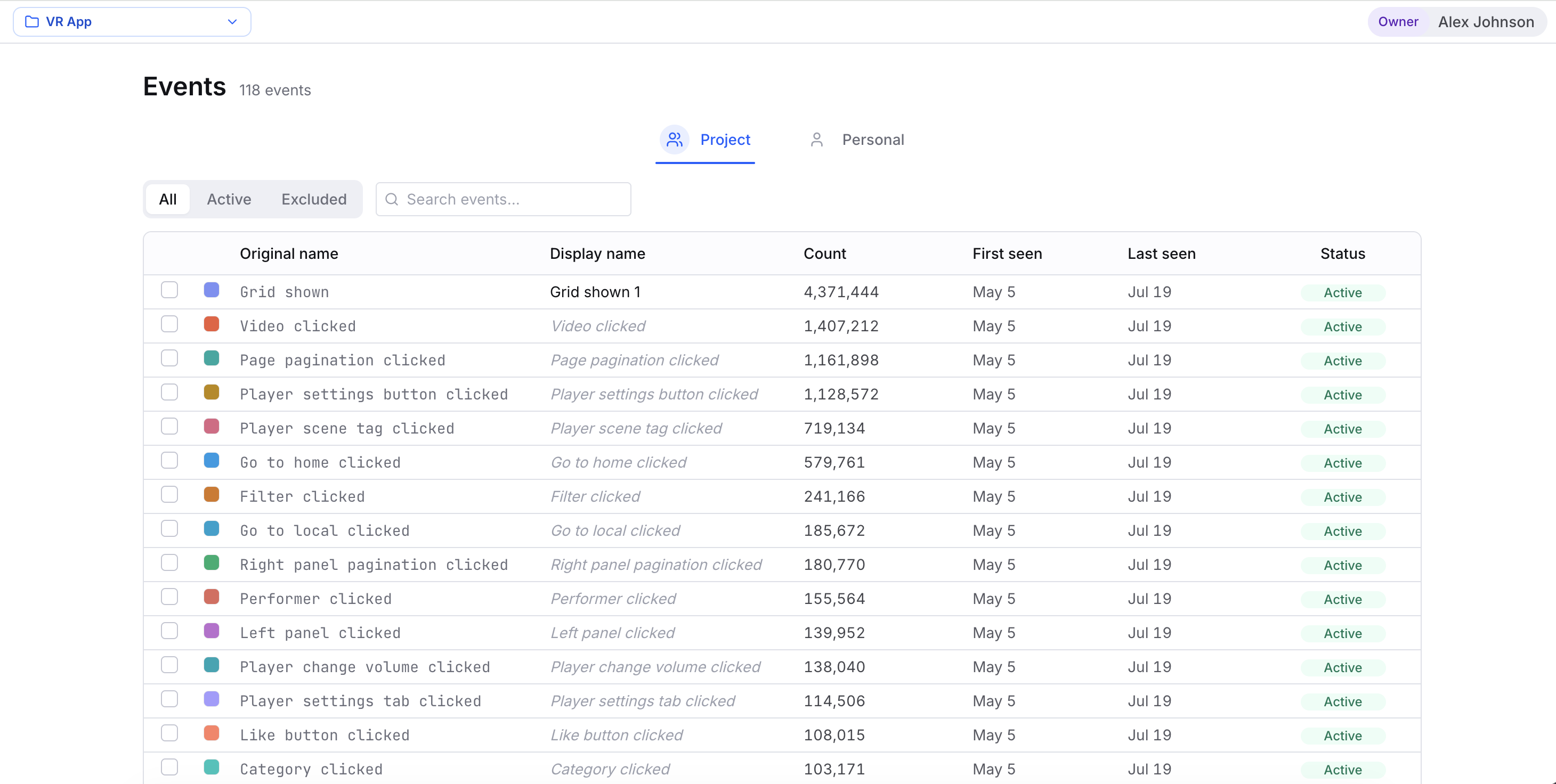
Event catalog columns
Each row is one distinct event name in the project. The header shows the total count — for example, Events — 142 events. Here's what each column tells you:
| Column | What it shows |
|---|---|
| Color swatch | The dot Cohortum uses for this event in every chart. Click it to change. |
| Original name | The raw event name exactly as it arrived in your source (shown in monospace). Read-only. |
| Display name | The friendly label shown across the app. Click to rename inline. |
| Count | Total number of times this event occurred. |
| First seen | Timestamp of the earliest occurrence. |
| Last seen | Timestamp of the most recent occurrence. |
| Status | Active or Excluded. Click the badge to flip it. |
Every header sorts — click once for ascending, again for descending. To narrow things down, use the All / Active / Excluded pill filters and the search box, which matches both the original and display names.
Count, First seen, and Last seen always cover all the data in the project. The analysis filters you set elsewhere don't touch these numbers.
This screen is only about event names — their labels, colors, and whether they count. You can't group events or edit their properties here. Event properties (like country or plan) show up where you use them: the filter panel and the graph side-panels inside an analysis.
Rename an event
Raw event names are rarely fit to show anyone. Rename one and the new label shows up everywhere — chart legends, side-panels, insights.
video_play_clicked to "Video clicked".An italic display name means the event is still riding on its original name — you haven't renamed it yet. Give it a custom label and it switches to solid text. The Original name never changes, so you can always trace a display name back to the raw data.
Activate or exclude events
Not every event belongs in your analyses. Debug pings, internal health checks, and sheer high-volume noise can bury the behavior you actually care about. Excluding an event drops it from every visualization and count but keeps it in the catalog, so you can bring it back whenever you want.
To toggle a single event, click its Status badge — Active flips to Excluded and back. Excluded rows are grayed out, so you can spot them at a glance.
To change a bunch at once, tick their checkboxes. A bulk action button shows up:
- Exclude (N) — hides the selected events when they're currently active.
- Activate (N) — restores the selected events when they're all excluded.
Good candidates to exclude: debug events, heartbeat or session-keepalive pings, and ultra-high-frequency events that dominate every step without telling you anything. Keep the events that represent real user intent — clicks, views, purchases, sign-ups.
New loads mark every event they discover Active by default. That means a later upload can quietly resurrect a name you excluded before, as a fresh Active event. If you're relying on exclusions to keep noise out, re-check the catalog after big uploads.
Edits apply immediately and propagate to every open and future analysis. Renaming, excluding, or recoloring an event changes the shared catalog, so Cohortum invalidates the cached results for the Steps, Journey, Transitions, and Clusters tabs and recomputes them. A tab you already have open may briefly show a loading or recomputing state before it reflects the change. Saved analyses are config snapshots, not catalog snapshots: they pick up catalog edits the next time you open and recompute them, so an analysis you saved before an edit still reflects the current catalog.
Set an event color
A consistent color keeps an event recognizable as your eye jumps between the Steps chart, the Transitions graph, and the Clusters view. Click any row's color swatch to open the picker. Pick from the palette, or type a custom #RRGGBB hex value and click Set.
Project scope vs. Personal scope
Your edits can land for the whole team or just for you. If you have edit rights, a toggle sits below the header:
- Project — edits affect everyone in this project. This is the shared, canonical catalog, and keeping it tidy keeps analyses consistent across your team.
- Personal — edits affect only what you see. Reach for this to override a name, color, or status for your own workflow without touching what teammates see.
Personal overrides sit on top of the project defaults. Say the Project scope renames an event but you never renamed it yourself: in Personal scope you'll still see the Project's name. Personal shows only your own overrides, layered on the Project defaults.
Only Owners, Admins, and Creators with upload rights can edit events, and only they see the scope toggle. Viewers (and Creators without upload rights) can browse, sort, search, and filter the catalog, but names, colors, and statuses are read-only for them.
Reset your personal overrides
Drifted too far from the shared catalog? You can snap everything back. In Personal scope, click the reset button (the circular-arrow icon next to search) to open Reset all events to project defaults. Confirm and every personal override you have in this project — name, color, and status — returns to the project defaults. Nobody else is affected. The button stays disabled when you have no overrides to clear.
Next steps
Events concept
How Cohortum defines and counts events across your sources.
Steps
See the analysis tabs your clean catalog feeds — start with the Steps chart.
Filters
Narrow any analysis by event, property, or cohort.
Sources and loads
Upload event logs and see where these events come from.
Roles and permissions
Who can edit the catalog, upload sources, and manage the workspace.