Cohorts
Save any user segment as a reusable cohort, then apply it as a filter, compare it, or open a fresh analysis scoped to just those users.
A cohort is a named group of users you save once and reuse. Found a segment worth watching — users who hit a paywall, everyone in a behavioral cluster, a CSV of trial signups? Save it as a cohort and stop rebuilding the same filter by hand every time.
You'll find them under User Cohorts in the left sidebar. The page lists every cohort in the current project, with tabs for All / Private / Shared, a search box, and a New cohort button.
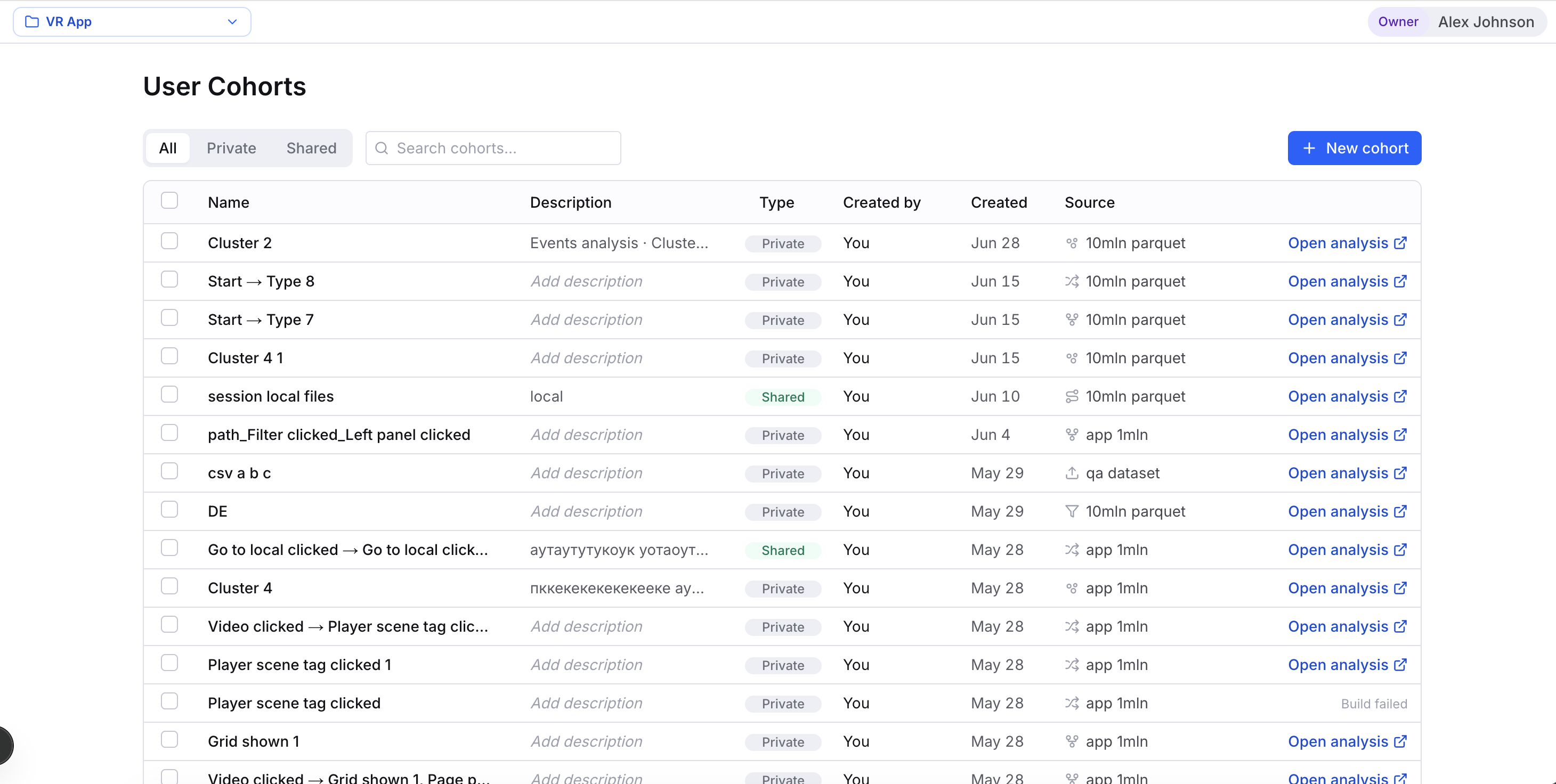
The three tabs control who sees what. Private cohorts show up only for their creator and workspace admins. Shared ones are visible to everyone in the workspace. All gives you your own private cohorts plus every shared one.
Why cohorts are worth saving
A saved cohort pays off three ways:
- Reuse it as a filter. Drop a cohort into the Filter panel on any analysis and every tab — Steps, Journey, Transitions, Clusters — recomputes for just those users. See Filtering your data.
- Compare it. Use a cohort as Group A or Group B in Compare to color a chart by who's in the segment.
- Share it. Mark a cohort Shared and everyone in the workspace can filter and compare with the exact same definition.
Where cohorts come from
Every cohort remembers where you made it — its origin — and shows it as an icon in front of the source name. Here's the full set:
| Icon | Origin | Created from |
|---|---|---|
| Steps | A step prefix | Drilling into a path on the Steps tab |
| Transitions | A node or edge | Clicking a node or edge on the Transitions graph |
| Journey | A node, edge, or path | A selection on the Journey DAG |
| Clusters | A cluster | A behavioral cluster on the Clusters tab |
| Uploaded | A CSV upload | The Upload CSV tab of the New cohort dialog |
| Saved filter | A condition set | The Define a dynamic cohort tab of the New cohort dialog |
The first four come from the graph side-panels. Select something on a chart, then hit the footer's Save cohort or Explore cohort. Explore cohort is the fast path when you want to look right now: it saves your selection as a private cohort and opens it in a new analysis on the spot. It still lands in your User Cohorts list, so reach for Save cohort if you'd rather keep that list tidy. The last two origins you build yourself on the User Cohorts page.
Live vs. snapshotted membership
Which kind you pick matters once your data keeps loading.
A Saved filter cohort is live. It stores the conditions, not a member list, and re-runs them every time you use it — so it always reflects the latest data. Every other origin, Uploaded included, is materialized: it freezes the exact members at build time and won't budge as new events arrive.
Want "everyone who has ever done X" to stay current? Build a dynamic Saved filter cohort. Want a fixed, reproducible list? Upload a CSV or drill from a chart.
Creating a cohort
Click New cohort to open the multi-step dialog. Start by picking a Source — a cohort lives on one source, and its conditions reference that source's event and property catalog. Then choose how to define who's in it.
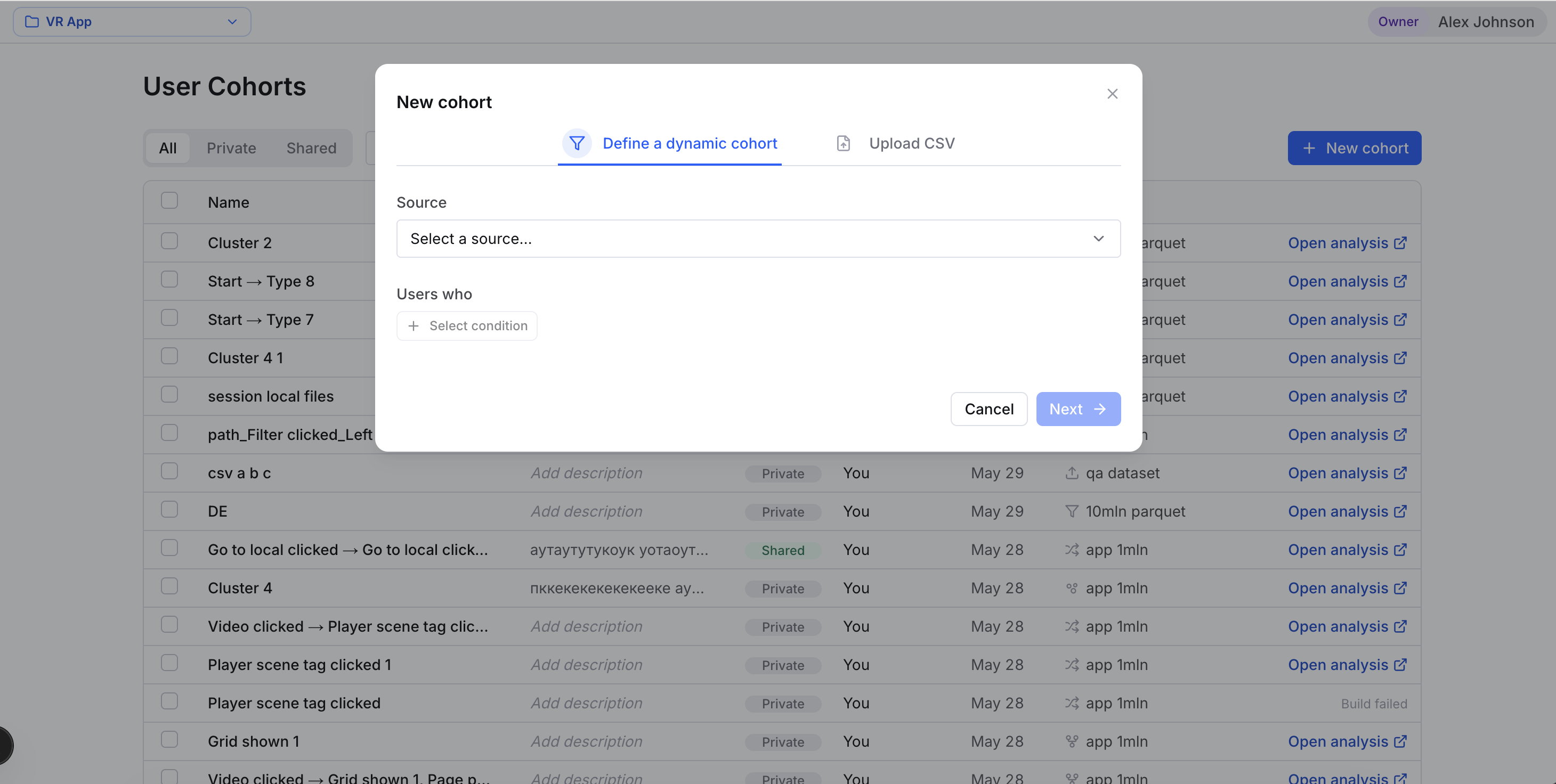
Define a dynamic cohort gives you a "Users who…" builder. Add one or more conditions with Select condition: had property, performed event, or first seen. You get a live Saved filter cohort.
Upload CSV lets you bring your own list. Pick a .csv file with a header row (up to 100 MB), then map the User column to the field that holds your user IDs. You get a materialized cohort that won't update on its own.
Click Next, then give the cohort a Name (say, "Weekly active users") and an optional Description so teammates know what it's for.
Click Create cohort. New cohorts start Private. Flip one to Shared later from the list, or set visibility right when you save from a chart's side-panel.
An uploaded list holds up to 100,000 unique user IDs. Need more? Build a dynamic cohort — a condition set has no cap and stays live.
Rename a cohort or edit its description whenever you like. But you can't change what defines its membership — the conditions of a dynamic cohort, or the uploaded member list — once it's created. To fix a mistyped condition or swap in a new CSV, delete the cohort and make a new one.
Cohort build status
Materialized cohorts get computed in the background, so a new row moves through a short lifecycle:
- Building… — members are being snapshotted. You can't use the row as a filter yet.
- Open analysis — the cohort is ready. This link opens a new Events analysis pre-filtered to it.
- Build failed — something went wrong, often no matching users. Delete it and try again.
Live Saved filter cohorts are ready the instant you create them — there's nothing to snapshot.
Using a cohort
Once a cohort is ready, put it to work:
- As a filter. In the analysis Filter panel, add a saved cohort filter and pick your cohort. Only ready cohorts on the matching source show up in the picker, and you can apply one cohort filter at a time.
- In Compare. Reference the cohort inside a Compare group to overlay it against another segment.
- Open analysis. From the list, Open analysis launches a fresh workspace scoped to that cohort in a new tab — the quickest way to explore a segment end to end.
You can rename a cohort or edit its description inline on ones you created. Select rows to use the bulk Make shared / Make private and Delete actions.
Deleting a cohort happens right away, and you can't undo it. Any analysis Filter or Compare group that used it drops the segment the next time it recomputes. A saved analysis built on that cohort opens into a degraded "removed segment" state instead of quietly returning different numbers. And since a cohort lives on one source, deleting that source does the same thing — the cohort stops resolving, vanishes from filter and compare pickers, and anything leaning on it falls back the same way. If teammates might depend on it, rename it before you delete.